First, what KDP expects from the content
A layout tool arranges your pages; it doesn't make them yours. KDP's content guidelines say it won't accept copyrighted material you don't hold the rights to, and that content which is excessively reused, recycled or repeated within or across books can be treated as low quality. Use your own artwork, or artwork you are licensed to use in print. Whether a book counts as low-content, and what that changes for the ISBN and categories, is KDP's call: read its Low-Content Books page instead of guessing.
Step 1: choose the trim size
The trim size is the finished size of one page. KDP lists the sizes it prints; 8.5 × 11 in is a common choice for coloring books and is the one in the screenshots below. Pick it first, because every other number follows from it.
If you use bleed, the PDF page is bigger than the trim: KDP says to add 0.125 in to the width and 0.25 in to the height (0.125 in on the top, bottom and outside edge). Here is that arithmetic for four sizes, with the pixels a full-page image needs at 300 DPI:
| Trim size | PDF page with bleed | Pixels at 300 DPI |
|---|---|---|
| 8.5 × 11 in | 8.75 × 11.25 in | 2625 × 3375 |
| 8.5 × 8.5 in | 8.625 × 8.75 in | 2588 × 2625 |
| 8 × 10 in | 8.125 × 10.25 in | 2438 × 3075 |
| 6 × 9 in | 6.125 × 9.25 in | 1838 × 2775 |
8.5 × 11 in
PDF page with bleed8.75 × 11.25 in
Pixels at 300 DPI2625 × 3375
8.5 × 8.5 in
PDF page with bleed8.625 × 8.75 in
Pixels at 300 DPI2588 × 2625
8 × 10 in
PDF page with bleed8.125 × 10.25 in
Pixels at 300 DPI2438 × 3075
6 × 9 in
PDF page with bleed6.125 × 9.25 in
Pixels at 300 DPI1838 × 2775
Arithmetic from KDP's bleed rule. Confirm that your trim size is on KDP's list before you design.
Step 2: bleed and margins
Bleed is the strip of artwork that runs past the trim line, so a slightly off cut never leaves a white sliver. KDP accepts bleed only in a PDF. If any ink on your pages touches an edge, use bleed. If every page is black line art on white and stays inside the margins, you can tell KDP the book has no bleed and keep the trim-size page.
Margins are the safe area for anything that must not be cut off or swallowed by the binding. KDP's chart sets minimums that depend on the page count:
- Outside margin: at least 0.25 in without bleed, at least 0.375 in with bleed.
- Inside (gutter) margin: at least 0.375 in for 24 to 150 pages, 0.5 in for 151 to 300 pages. The chart continues for thicker books, so look up your own page count.
Step 3: 300 DPI for every image
KDP asks for images at 300 DPI or higher at print size, and suggests not going far past 600 DPI so the file stays small. On an 8.5 × 11 in page with bleed, a full-page picture therefore needs about 2625 × 3375 pixels. A scan or a download at 72 or 150 DPI will print soft, and no export setting can add detail to a small source file.
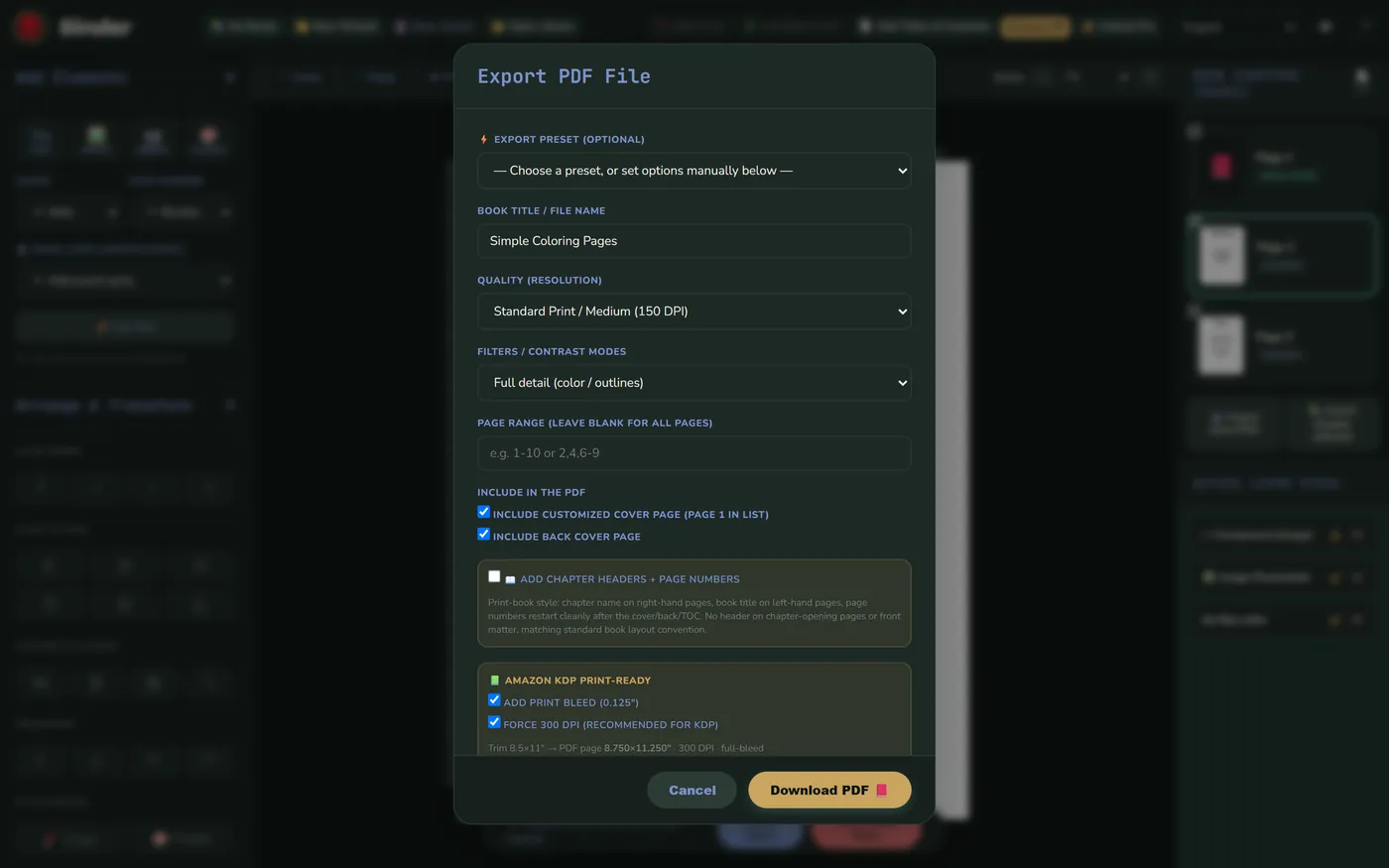
In Binder the export dialog has two checkboxes for this, Add print bleed (0.125 in) and Force 300 DPI, and it shows the exact PDF page size before you download. The screenshot reads: trim 8.5 × 11 in becomes a PDF page of 8.750 × 11.250 in at 300 DPI, full-bleed.
Step 4: build the pages from one template
Most coloring, activity and planner books repeat one layout: a title, a picture area, a border, then the same again for the next animal, letter or date. In a general design app that means duplicating a page 26 or 50 times and retyping each one.
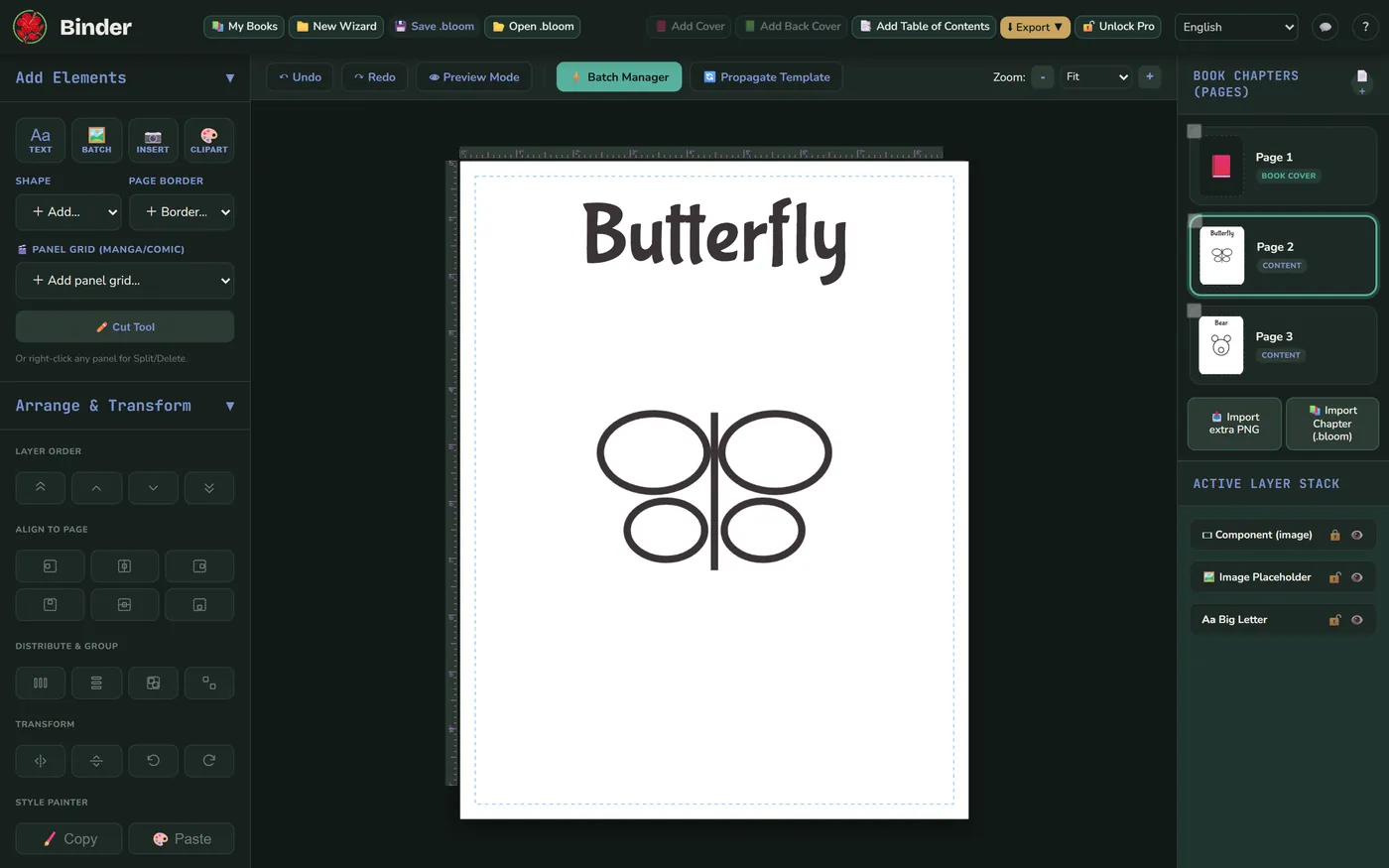
Binder is built around that job. You design one template page; the Batch Manager fills every other page from the letters A to Z, a word list, numbers or a CSV, and you can still edit any single page afterwards.
- Start from one of the eight starter books (ABC animals, numbers, coloring pages, an activity page, a daily planner, a manga starter, recipe cards or a blank book), or begin blank.
- Set the page size to your trim size.
- Design the template page: a big word or letter, an image box, a border. The first content page acts as the master for the batch.
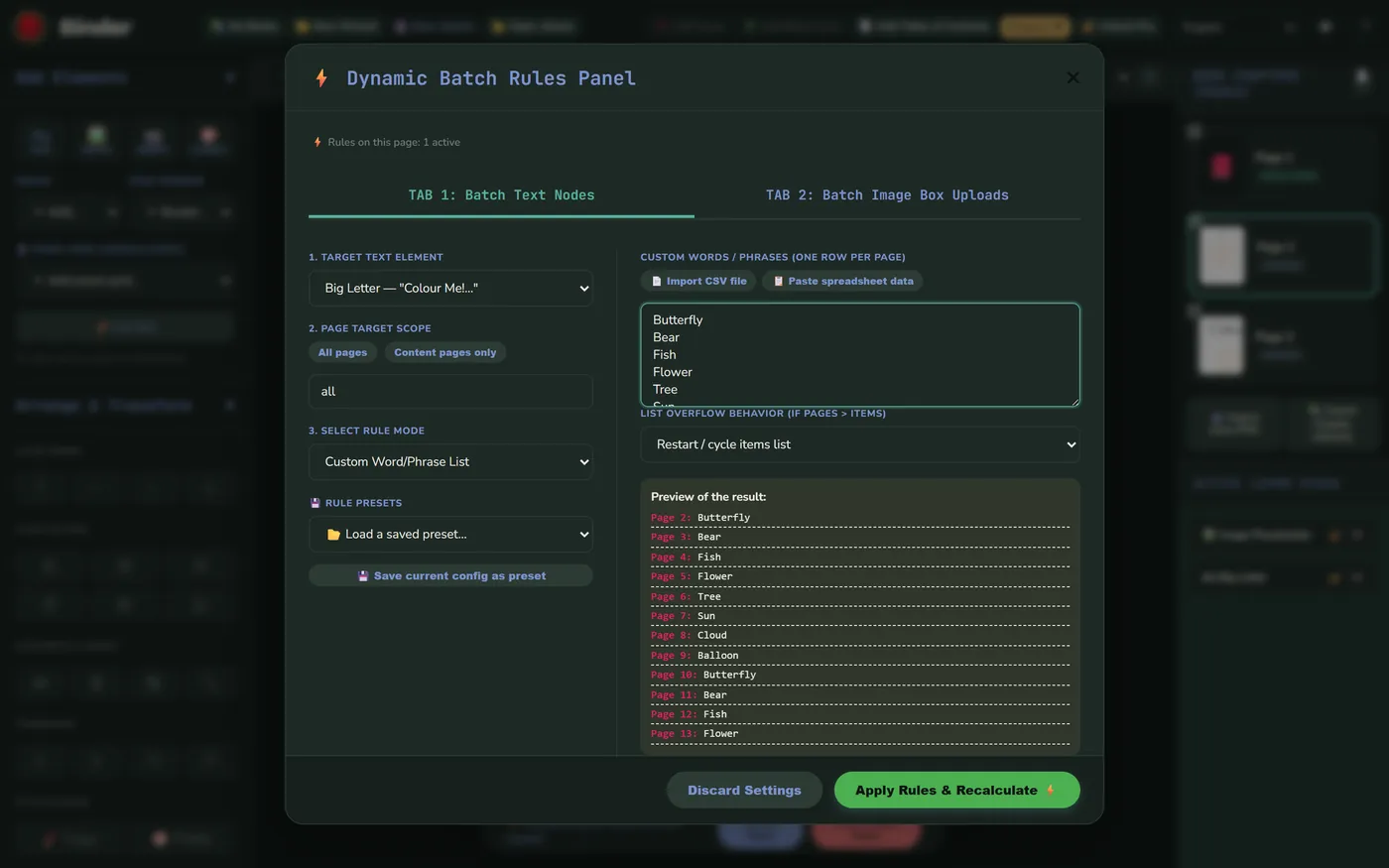
- Open the Batch Manager, pick the text element to fill and paste your word list or import a CSV. A live preview shows which word lands on which page.
- Use the second tab to fill the image boxes from your uploaded pictures, then fix any page by hand.
If you already work in InDesign or Affinity Publisher, master pages plus data merge are the same idea in those apps. The point is to stop duplicating pages by hand.
Step 5: the cover and the spine
KDP wants the cover as one PDF: back cover, spine and front cover side by side, with bleed on every outer edge. Its cover page gives the rule: the width is the bleed, the back cover, the spine, the front cover and the bleed again; the height is the trim height plus two bleeds of 0.125 in. The spine depends on your page count and paper:
| Paper | Spine per page (KDP) | Spine at 100 pages |
|---|---|---|
| White | 0.002252 in | 0.2252 in |
| Cream | 0.0025 in | 0.25 in |
| Premium color | 0.002347 in | 0.2347 in |
White
Spine per page (KDP)0.002252 in
Spine at 100 pages0.2252 in
Cream
Spine per page (KDP)0.0025 in
Spine at 100 pages0.25 in
Premium color
Spine per page (KDP)0.002347 in
Spine at 100 pages0.2347 in
Values as listed on KDP's cover page when this guide was written. KDP's own cover calculator is the authority, and it covers the other cases too.
Worked example: 8.5 × 11 in trim, 100 pages, white paper. Spine = 100 × 0.002252 = 0.2252 in. Cover width = 0.125 + 8.5 + 0.2252 + 8.5 + 0.125 = 17.4752 in; cover height = 11 + 0.25 = 11.25 in.
Two limits to know: a KDP paperback needs at least 24 pages, and spine text is only allowed from 79 pages (KDP's Cover Creator asks for 80). Below that, leave the spine blank.
Binder's full-wrap cover export joins the front and back and works out the spine from your page count and paper type (white, cream or premium color). Treat its number as a draft and confirm it against KDP's calculator before you upload.
Step 6: export, preview, upload
- In the export dialog set the file name, the quality, the page range (blank means all pages) and whether to include the cover and the back cover.
- Tick the KDP options (bleed and 300 DPI) and check that the PDF page size it shows matches the table above.
- Download the PDF and open it: right page size, right page count, nothing cut at the edges.
- Upload it to KDP and use KDP's online previewer to check bleed and margins. If the book matters to you, order a printed proof before you publish.
What it costs in Binder: the editor is free with no time limit, and free exports carry a small watermark and stop at 12 pages, which is enough to test your trim size and layout end to end. Clean exports are paid per export with credits that never expire, or once with Binder Pro; there is no subscription. The live prices are on Binder's pricing page.
Do you need Binder, or will your current tool do?
| Your situation | What I would use |
|---|---|
| A one-off book with a few pages | Any editor you already know that exports bleed and 300 DPI. You don't need Binder. |
| A long book with heavy typography | A full desktop layout app such as InDesign or Affinity Publisher. Binder is a page-layout tool for template-driven books, not a typesetting suite. |
| The same layout across 26 to 100 pages (A to Z, numbers, word lists, planners) | Binder. The Batch Manager does the repeating for you. |
| You work on a phone | Not Binder. The editor is built for a computer: a laptop, a desktop or a tablet in landscape. |
| You want the artwork generated | Not Binder. It lays out the artwork you bring; it doesn't draw it. |
A one-off book with a few pages
What I would useAny editor you already know that exports bleed and 300 DPI. You don't need Binder.
A long book with heavy typography
What I would useA full desktop layout app such as InDesign or Affinity Publisher. Binder is a page-layout tool for template-driven books, not a typesetting suite.
The same layout across 26 to 100 pages (A to Z, numbers, word lists, planners)
What I would useBinder. The Batch Manager does the repeating for you.
You work on a phone
What I would useNot Binder. The editor is built for a computer: a laptop, a desktop or a tablet in landscape.
You want the artwork generated
What I would useNot Binder. It lays out the artwork you bring; it doesn't draw it.
Pre-upload checklist
- You hold the rights to every image and font in the book.
- The trim size is on KDP's list and matches your PDF (trim plus 0.125 in wide and 0.25 in tall if you used bleed).
- The book has at least 24 pages.
- Every image is 300 DPI or higher at print size.
- Titles and key art sit inside KDP's margins for your page count.
- Spine text only if the book has 79 pages or more.
- The cover size comes from KDP's cover calculator, not from memory.
- You have looked at KDP's previewer, and ordered a printed proof if the book matters to you.
Frequently asked questions
What size should a coloring book be for KDP?
Any size on KDP's trim list works. 8.5 × 11 in is a common pick for coloring books. With bleed, an 8.5 × 11 in book needs an 8.75 × 11.25 in PDF page.
Do coloring pages need bleed?
Only if ink touches the page edge. If everything sits inside the margins on a white page you can choose no bleed in KDP. KDP accepts bleed only in PDF files.
What DPI does KDP need for a coloring book?
KDP asks for images at 300 DPI or higher at print size.
How many pages does a KDP paperback need?
At least 24. Spine text needs at least 79 pages (KDP's Cover Creator asks for 80).
Can I make a coloring book with Binder for free?
You can build the whole book for free, with no time limit. Free PDF exports carry a small watermark and stop at 12 pages. Clean exports are paid, per export or once with Binder Pro, and there is no subscription.
Does Binder need an account or an internet connection?
No account. Open it once and it keeps working offline; your books are saved in your own browser and can be backed up as a .bloom file.
Does Binder draw the pictures?
No. You bring your own artwork and Binder lays it out.
Sources
About
Patrick Chen is a solo maker behind Sublimearts.io: ReelNox Studio, BackDrop_, Time Precision, SublimeKeys and, since November 24, 2026, Binder, a browser tool for laying out print books.